
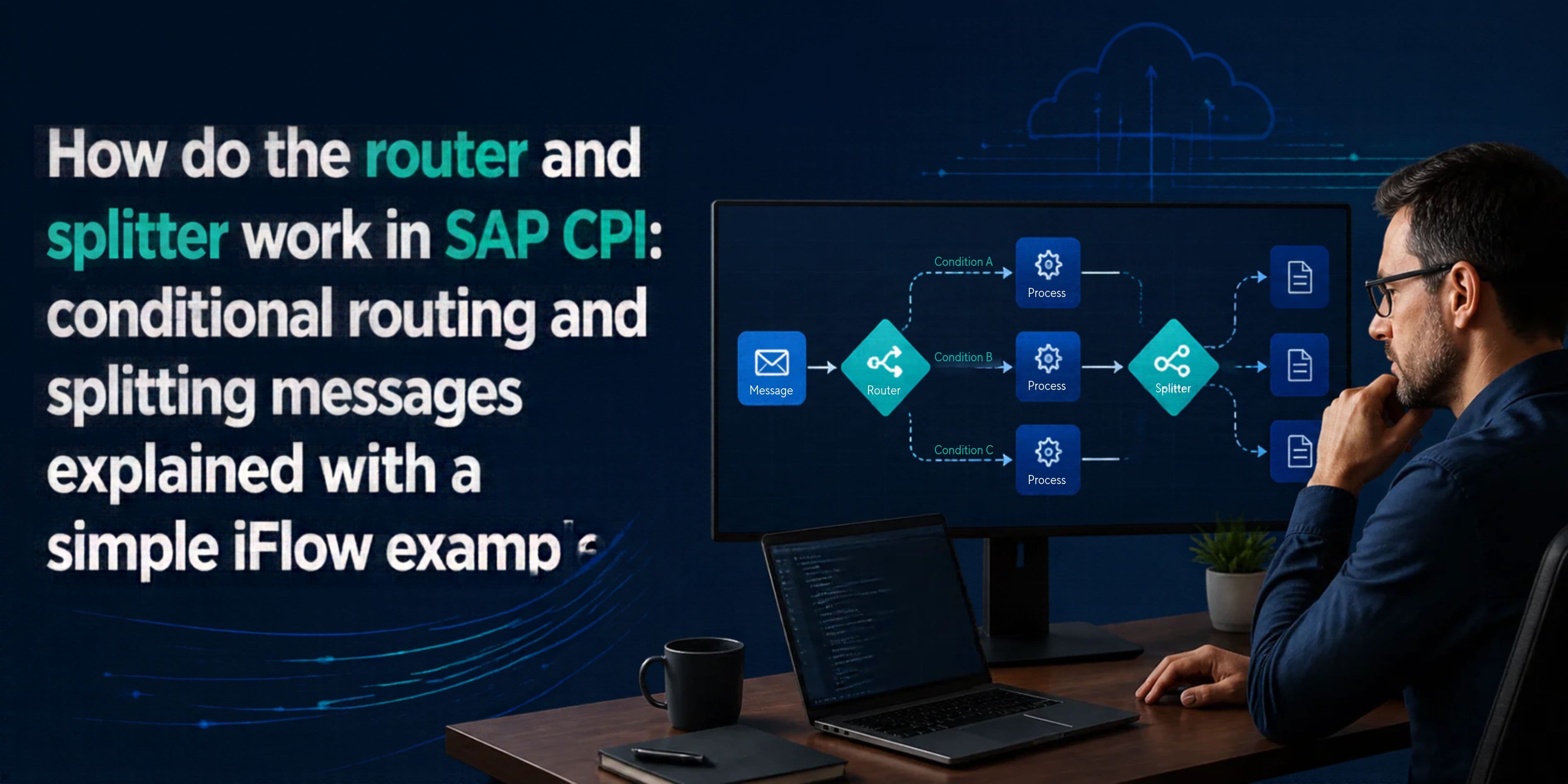
How do the router and splitter work in SAP CPI: conditional routing and splitting messages explained with a simple iFlow example?
Introduction
Almost every integration project I have worked on reaches the same point. The message arrives, and then someone asks two questions. Where should this message go, and what do we do when it contains hundreds of records? In SAP Cloud Platform Integration, which most people simply call SAP CPI, those two questions are answered by two steps: the router and the splitter.
The router decides the path. The splitter decides the size. Used together, they let one integration flow handle many business situations without building a separate flow for each one. If you are new to SAP CPI, these two steps can feel confusing at first, mainly because the settings are spread across several tabs and the behaviour changes slightly based on how you configure them.
In this article I explain both steps in plain language. You will see the definition, quick facts, how each step works inside an iFlow, a simple example you can build in your own tenant, real time examples from projects, common mistakes, and a set of frequently asked questions. By the end you should be able to design a flow that sends messages to the right receiver and breaks large payloads into small pieces without errors.
Definition
What is a router in SAP CPI?
A router in SAP CPI is a step that sends a message down one of several paths, based on a condition. Technically it is an exclusive gateway. That word, exclusive, matters. When a message reaches the router, CPI checks the conditions one by one, and the first condition that is true wins. The message follows that route only. It never goes down two routes at once.
You can think of it as a traffic police officer at a junction. Every vehicle gets one direction, never two. If none of the directions suit the vehicle, the officer sends it down a default road, if one has been set up.
What is a splitter in SAP CPI?
A splitter is a step that takes one large message and breaks it into several smaller messages. Each smaller message is then processed on its own by the steps that follow. Think of an invoice file with 500 line items. Instead of processing all 500 together, the splitter hands the next steps one line at a time, or ten lines at a time if you choose grouping.
The splitter does not change your data. It only cuts the message at a point you define, usually an XPath that points to a repeating element, such as an Item or an Order. After the work is done, a gather step can join the pieces back into a single message if you need that.
Quick Facts
How the Router Works in SAP CPI
When you drop a router into an iFlow, you get a diamond shape on the canvas. From the diamond you draw lines to the next steps. Each line is a route. Click on the router, open the Processing tab, and you will see a table with all your routes.
Route settings
Each route has a few settings that matter:
- Name. Give a meaningful name such as India Orders or Electronics. It makes monitoring much easier later.
- Expression Type. Choose XML for conditions written in XPath, or Non-XML for conditions written against headers and properties.
- Condition. The actual test, for example a country code or an item type.
- Default Route. A tick box. Only one route can carry it.
- Order. The sequence in which CPI checks the conditions.
Writing the conditions
For XML conditions, you write an XPath that reads the payload. For example, if your message has a Country field under the Order element, the condition would look like this:
/Order/Header/Country = 'IN'
For Non-XML conditions, you work with values stored in headers or properties. This is what most developers prefer, because it does not depend on the payload structure. A typical condition looks like this:
${header.Country} = 'IN'
${property.OrderType} = 'RUSH'
${header.Amount} > 10000
You can also combine tests with and, or. For example, to catch rush orders from India you can write a condition that checks both the country header and the order type property in the same line.
Order matters more than you think
Because the router is exclusive, the sequence of your routes can change the outcome. Suppose route one checks that the amount is greater than 1000, and route two checks that the amount is greater than 10000. A message with an amount of 20000 will always go to route one, since it matches first. Route two will never run. The fix is simple. Put the most specific condition at the top and the general ones below it.
Always keep a default route
A router without a default route is a trap waiting for the day an unexpected value arrives. If a new country code shows up that nobody planned for, the message fails. I always set one route as the default and point it either to an error handling path or to a general receiver, so that nothing is lost silently.
Router versus multicast
Beginners often ask why a message did not reach two receivers even though both conditions were true. The answer is that the router sends to one route only. If you want the same message to go to several receivers, use the Multicast step instead. Parallel multicast sends the message to all branches at the same time, and sequential multicast does it one after another.
How the Splitter Works in SAP CPI
A splitter takes the incoming message and creates a new message for every part it finds. Each new message then runs through the remaining steps in that section of the flow. The behaviour depends on which splitter type you choose.
General splitter
The general splitter splits a message that has several sub messages, and it keeps the surrounding structure. Say your payload is an Orders element with three Order elements inside. After a general split, each message you get still has the Orders wrapper with one Order inside it. This is useful when the next step, such as a mapping, expects the original root element.
Iterating splitter
The iterating splitter also cuts the message into parts, but it gives you only the repeating element. The same Orders example would produce messages that start directly at the Order element, with no wrapper. If your target service wants one clean record per call, this is usually the better choice.
EDI and IDoc splitters
The EDI splitter breaks an EDI interchange into its individual messages, and the IDoc splitter does the same for IDoc packages that carry more than one IDoc. You will meet these mostly in B2B and SAP to SAP scenarios.
Important splitter settings
- Expression Type. Usually XPath for XML payloads. Line Break is also available for flat text files.
- XPath Expression. Points to the repeating element, such as //Order/Item.
- Grouping. Decides how many pieces go in one message. A value of 1 gives one record per message. A value of 10 gives ten records in each message.
- Streaming. Reads the payload as a stream. Helpful for big files because it keeps memory use low.
- Parallel Processing. Handles the pieces at the same time. It saves time, but the order of results is not guaranteed.
- Stop On Exception. If one piece fails, the remaining pieces are not processed. Turn it off if you want the good records to go through anyway.
- Timeout. The time allowed for parallel processing to finish.
Headers created by the splitter
While splitting, CPI adds a few headers that you can read in later steps. CamelSplitIndex tells you the position of the current piece, starting from zero. CamelSplitSize holds the total number of pieces, once it is known. CamelSplitComplete becomes true on the last piece. These headers are handy for logging, and also for adding a counter to each outgoing record.
Gather: putting the pieces back
If you need one response at the end, add a Gather step after your processing. Gather can join the pieces, either as a simple combination of messages or as a merge into a single XML structure with the right format. Without a gather, the splitter section continues to the end of the flow, and each piece is handled as a separate message.
Simple iFlow Example: Order Processing with Splitter and Router
Let me walk you through a small scenario that you can build in a trial tenant. A webshop sends one order file with several items. Each item belongs to a category. Electronics items must go to the warehouse system in one location, and grocery items must go to a different warehouse. Anything else goes to a general queue.
Sample input
<Order>
<OrderId>5001</OrderId>
<Customer>Ravi Traders</Customer>
<Item><Name>Laptop</Name><Category>ELECTRONICS</Category><Qty>2</Qty></Item>
<Item><Name>Rice Bag</Name><Category>GROCERY</Category><Qty>10</Qty></Item>
<Item><Name>Desk Lamp</Name><Category>OTHER</Category><Qty>4</Qty></Item>
</Order>
Flow design
The flow has these steps in sequence:
- Sender. A SOAP or HTTPS adapter receives the order file.
- Iterating Splitter. Set the expression type to XPath, and use //Order/Item as the expression. Keep grouping at 1, so each item becomes its own message. Leave parallel processing off while you test.
- Content Modifier. Read the category into a header. Create a header named Category with the source type XPath and the value /Item/Category, with the data type String.
- Router. Add three routes, and set the expression type to Non-XML.
- Route 1, Electronics. Condition: ${header.Category} = 'ELECTRONICS'. This goes to the electronics warehouse receiver.
- Route 2, Grocery. Condition: ${header.Category} = 'GROCERY'. This goes to the grocery warehouse receiver.
- Route 3, Default. Tick Default Route. This goes to a general receiver, or to a mail adapter that alerts the support team.
What happens at runtime
The order arrives with three items. The splitter cuts it into three messages. The first message holds the laptop, the content modifier sets the Category header to ELECTRONICS, and the router sends it to the electronics warehouse. The second message holds the rice bag and goes to the grocery warehouse. The third holds the desk lamp, finds no matching condition, and takes the default route.
Open the Monitor, select Message Processing, and open the trace for this message. You will see the splitter run three times, with CamelSplitIndex values of 0, 1 and 2. This is the quickest way to understand how both steps behave, so do try it once with trace logging turned on.
Adding a gather
If the webshop wants one confirmation back, you need to bring the three branches together. Place a Join step where the routes meet, then add a Gather after it. Set the gather to combine messages, and choose the XML format that suits your response. Without the join, the gather will not see the pieces arriving from different routes.
Real Time Examples
Example 1: Retail order routing
A retail company receives purchase orders from many online partners. Every order has a delivery country. The router reads the country header and sends European orders to one fulfilment system, Asian orders to another, and everything else to a manual review queue. Before this setup, the team had three separate iFlows with the same mapping copied three times. After the change they kept one flow, and any mapping fix had to be done only once.
Example 2: Bank payment batch
A bank sends a daily file with thousands of payment instructions to an integration platform. A splitter with grouping of 100 breaks the file into batches. A router then checks the payment type on each batch. Domestic transfers go to one clearing service, and international transfers go to another that needs different fields. Streaming is switched on, because the file is large and memory use would otherwise grow quickly.
Example 3: Employee data from HR system
An HR system exports all employee changes at night in one XML file. The iFlow splits the file per employee using the iterating splitter, so a single bad record does not stop the rest. Stop On Exception is turned off. Failed records are written to an error log, and the good ones reach the payroll and the access management systems. The next morning the HR team gets one mail with the list of rejected employees, which they correct and resend.
Example 4: Idoc packages from SAP S/4HANA
An SAP S/4HANA system sends sales order IDocs in packages of fifty. The IDoc splitter separates them into single IDocs. The router then looks at the order type and sends standard orders to the logistics partner, while returns go to a separate returns handling service. Each piece is traced on its own, which makes support work much easier, because you can find the exact IDoc that failed.
Example 5: Invoice approval by amount
In a finance scenario, invoices below a set amount are posted automatically, and larger ones are sent to an approval system. A single router condition on the amount header handles this. When the limit changes, the team edits one value in an externalized parameter, and no redeployment of design logic is needed.
Best Practices and Common Mistakes
- Prefer headers and properties in router conditions. XPath conditions break easily when the payload structure changes. Header based conditions are easier to read and to test.
- Never skip the default route. Unexpected values will arrive sooner or later.
- Check the route order. Put the narrow conditions first, the wide ones last.
- Choose the right splitter. If the next step cannot work without the root element, use the general splitter. Otherwise the iterating splitter keeps things simpler.
- Be careful with parallel processing. It is faster, but it can overload a slow receiver, and the order of the results can change.
- Use grouping for big volumes. Calling a receiver once per record for 50,000 records is slow. Grouping into batches of 50 or 100 is usually kinder to the target system.
- Use externalization. Keep values like country codes and amount limits as parameters, so they can be changed per environment.
- Test with trace turned on. Seeing the message after each step tells you more than any documentation.
- Do not forget the join. If routes need to come together before a gather, add a join step.
Frequently Asked Questions
Q1. What is the difference between a router and a multicast in SAP CPI?
A router sends each message to exactly one route, the first one whose condition is true. A multicast sends the same message to all its branches, either in parallel or one after another. Use a router when you need a decision, and use a multicast when several receivers need the same data.
Q2. What happens if no router condition matches?
If a default route is defined, the message follows it. If there is no default route, the message processing ends with an error, and you will see it as failed in the Monitor. This is why a default route is always a good idea.
Q3. Can I use more than one default route?
No. Only one route can be marked as the default route in a router. All other routes need their own condition.
Q4. What is the difference between the general splitter and the iterating splitter?
The general splitter keeps the outer structure of the message in every piece, so each split message still has the root element. The iterating splitter returns only the repeating element, without the wrapper. Pick the one that matches what the next step expects.
Q5. Does the splitter work with non XML data?
Yes, to an extent. The splitter supports a line break expression type, which cuts a flat text file at each new line. For other formats such as JSON or CSV, many developers convert the data to XML first, and then split.
Q6. How can I know which split message I am processing?
Read the CamelSplitIndex header. It holds the position of the current piece, starting at zero. CamelSplitSize gives the total number of pieces, and CamelSplitComplete is true on the last one.
Q7. Is parallel processing in the splitter always a good idea?
Not always. It makes the flow faster, but the receiver must be able to handle many calls at once, and the order of the results is not fixed. For small messages or sensitive receivers, sequential processing is safer.
Q8. Do I need a gather step after every splitter?
No. A gather is needed only when you want to join the pieces back into one message, for example to send a single response to the sender. If every piece goes its own way to a receiver, a gather is not required.
Q9. Can I place a router inside a splitter?
Yes, and it is a very common design. The splitter creates the pieces, and the router decides where each piece goes. If the branches must come together afterwards, use a join step followed by a gather.
Q10. Which expression type should I choose in the router, XML or Non-XML?
Use XML when the decision depends on a value deep inside the payload and you do not want to extract it first. Use Non-XML when you can read the value from a header or a property. Non-XML conditions are shorter, and they are easier to maintain.
Conclusion
The router and the splitter are two of the most used steps in SAP CPI, and for good reason. The router gives your iFlow the ability to decide, and the splitter gives it the ability to handle large messages one piece at a time. Once you understand that the router is exclusive, that the order of routes matters, and that a default route protects you from surprises, most routing problems become easy to solve. In the same way, once you know how the general and iterating splitters differ, and how grouping, streaming and parallel processing change the behaviour, large file scenarios stop being scary.
My advice is to build the small order example from this article in your own tenant. Change the conditions, turn the trace on, switch between the two splitter types, and watch what happens to the message after each step. Ten minutes of hands on work will teach you more than an hour of reading.
If you want to go deeper and learn how these steps fit into real projects, with error handling, security, mappings and monitoring, a structured SAP CPI with BTP training is the best next step. Learning SAP CPI with BTP training from an experienced trainer gives you project style practice on routing, splitting, adapters and the wider SAP Business Technology Platform, which is exactly what employers look for in integration consultants today.
Author Bio
This article is written by the TechBrainz SAP team, sharing practical insights into SAP Joule and its role in everyday business operations. Our team aims to help SAP learners and professionals stay informed about the latest developments in SAP technology.